
How to Fix Delta Executor Not Working
A complete troubleshooting playbook for when Delta Executor misbehaves — from app-not-opening to crashes, install errors, compatibility, updates, permissions, and network issues.
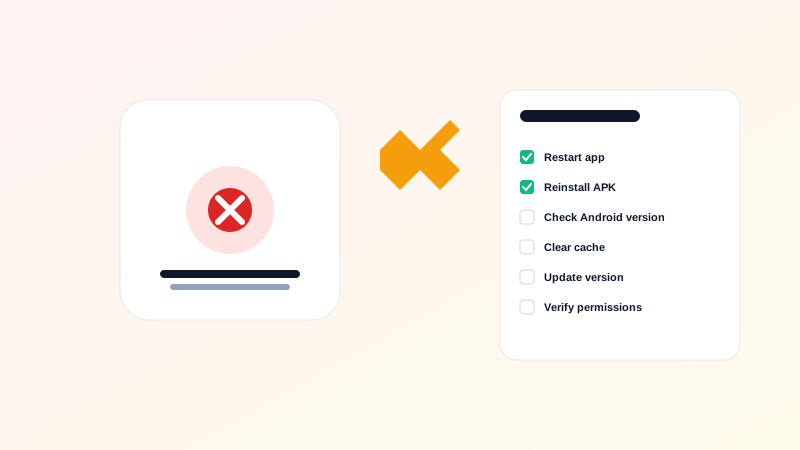
Delta Executor is a robust app, but like any third-party tool, it sometimes doesn't work the way you expected. This guide walks through the most common failure modes and gives you a structured way to fix each one. Work through the steps in order — the issues at the top of the article are usually the cause of the issues lower down.
If you only have a minute, start with the Universal first step below. If that doesn't help, jump to the section that matches your symptom.
Universal first step
Before diving into specific fixes, do these three things. They resolve a surprisingly large fraction of problems:
- Restart your phone. A fresh boot clears stale state that nothing else can.
- Check your internet connection. Many issues look like app problems but are actually network problems.
- Update Delta Executor. Older builds sometimes break when Roblox updates its own client.
If those don't help, continue below.
App not opening
The icon launches, then the app closes immediately. Or the splash screen appears, then nothing.
Common causes
- Incompatible Android version
- Incomplete or corrupt install
- Conflicting apps (overlay, custom keyboards, screen recorders)
- Aggressive battery savers killing the app on launch
- Outdated build
Fixes
- Restart your phone.
- Confirm Android version meets the build's minimum requirement.
- Uninstall and reinstall Delta Executor from a trusted source.
- Disable any overlay or accessibility apps you have running.
- Add Delta Executor to your phone's "do not optimise" battery list.
- Try an older build if the latest is unstable.
APK won't install
Android refuses the install or shows "App not installed" or "There was a problem parsing the package."
Common causes
- Per-app install permission not granted
- Partial download (file corrupted)
- Signature mismatch with a previous version
- Insufficient storage
- Managed profile (work/school account) blocking sideloads
Fixes
- Confirm the per-app install permission is enabled for your browser.
- Re-download the APK from a trusted source.
- Compare file sizes between the downloaded file and the publisher's listed size.
- If updating over an existing install, uninstall the old version first.
- Free up at least 500 MB of storage.
- Try a different browser.
- If on a managed profile, contact your IT admin or remove the profile.
Crashes
The app runs for a while, then closes unexpectedly. Sometimes immediately after launch, sometimes mid-script.
Common causes
- Memory pressure (too many background apps)
- Heavy scripts overwhelming the executor
- Conflicting overlays
- Outdated build
- Corrupt app data
Fixes
- Close background apps to free up RAM.
- Avoid running multiple heavy scripts at once.
- Disable overlays while using Delta Executor.
- Update to the latest build.
- Clear app data (Settings → Apps → Delta Executor → Storage → Clear data).
- Reinstall if crashes persist.
Compatibility issues
The app behaves differently on your phone than on others. Or features that work elsewhere don't work on your device.
Common causes
- OEM-specific Android skin (MIUI, OneUI, ColorOS, etc.)
- Vendor-specific Android version differences
- Aggressive memory or battery management
- Custom permission layers
Fixes
- Check the publisher's tested-devices list if one exists.
- Disable OEM-specific battery savers for Delta Executor.
- Grant permissions in both the system settings and the OEM-specific settings.
- Disable vendor overlays if you can.
- Try a different build (older or newer) if the current one has known issues on your device.
Update problems
Installing a newer APK over an existing install fails, or the update installs but the app behaves oddly.
Common causes
- Signature mismatch (publisher changed certificates)
- Partial download
- Insufficient storage
- Old version's data conflicting with new version
Fixes
- Uninstall the old version first, then install the new APK.
- Re-download the APK to rule out a partial download.
- Free up storage.
- Back up saved scripts before uninstalling — clearing the install removes them.
- Clear app data after install to start fresh.
Permissions issues
The app asks for permissions you don't want to grant, or it can't access files/scripts it needs.
Common causes
- Android's runtime permission model denying access
- Storage permission not granted for script files
- Manufacturer-specific permission restrictions
Fixes
- Grant only the permissions the app actually needs.
- For storage access, grant the "All files access" permission if the app requests it for script management.
- Check OEM-specific settings for additional permission layers.
- Read every permission prompt — never grant access that doesn't relate to the app's core function.
Network issues
Key verification fails, script hub won't load, or the app shows "no internet" even though your connection is fine.
Common causes
- VPN blocking the verification endpoint
- DNS resolution issues
- Captive portal on public Wi-Fi
- Aggressive firewall or ad-blocker
Fixes
- Disable your VPN temporarily.
- Switch from public Wi-Fi to mobile data (or vice versa).
- Try a different DNS provider.
- Disable aggressive ad blockers or firewalls.
- Confirm the captive portal is signed in.
When nothing works
If you've worked through this entire guide and Delta Executor still isn't working, the issue is probably specific to your device, your build, or your environment. In that case:
- Capture a crash log if you can (Settings → About phone → Developer options → Bug report).
- Check the publisher's official bug tracker or community for similar reports.
- Try a different build (older or newer).
- Try a clean install on a different device to isolate whether the issue is the app or your environment.
For problems the Fixes page doesn't cover, the Contact page is open.
Final note
Most Delta Executor problems fall into one of the categories above. Working through them systematically — universal first step, then your specific symptom — resolves the vast majority of issues. The remaining cases are usually environment-specific and benefit from a clean install on a different device to isolate.
Bookmark this article. The first time something breaks is the worst time to start searching for fixes.
A short diagnostic workflow
When you hit a problem you don't recognise, the fastest path back to a working app is to follow this sequence:
- Confirm the symptom. What exactly is failing — open, install, script execution, network? Write down the exact error message if there is one.
- Restart your phone. Resolves a surprising fraction of problems.
- Find the matching section above. The article is organised by symptom, so jump straight to the section that matches.
- Try the lowest-effort fix first. Don't uninstall and reinstall before trying a simple restart. The fixes are ordered from least to most disruptive.
- If a fix works, stop. Don't keep "fixing" things that are already working.
- If a fix doesn't work, escalate to the next one in the same section. Each section has multiple fixes in order of likelihood.
- If nothing works, capture a crash log. Even a vague description helps when reporting to the publisher.
The structured approach is faster than trying random fixes from memory, and it usually surfaces the root cause before you've tried everything.